Orders and subscriptions
Every license is issued by an order. Sales through your own Stripe or PayPal account create orders automatically once connected on Settings → Payments (setup guide); you create one by hand for a manual sale, a giveaway, a replacement key, or a partner NFR. The form is the same in every case, and a total of 0 makes the order explicitly free-of-charge. Support can trace an order to its licenses and their activations in one place: the order's own page.
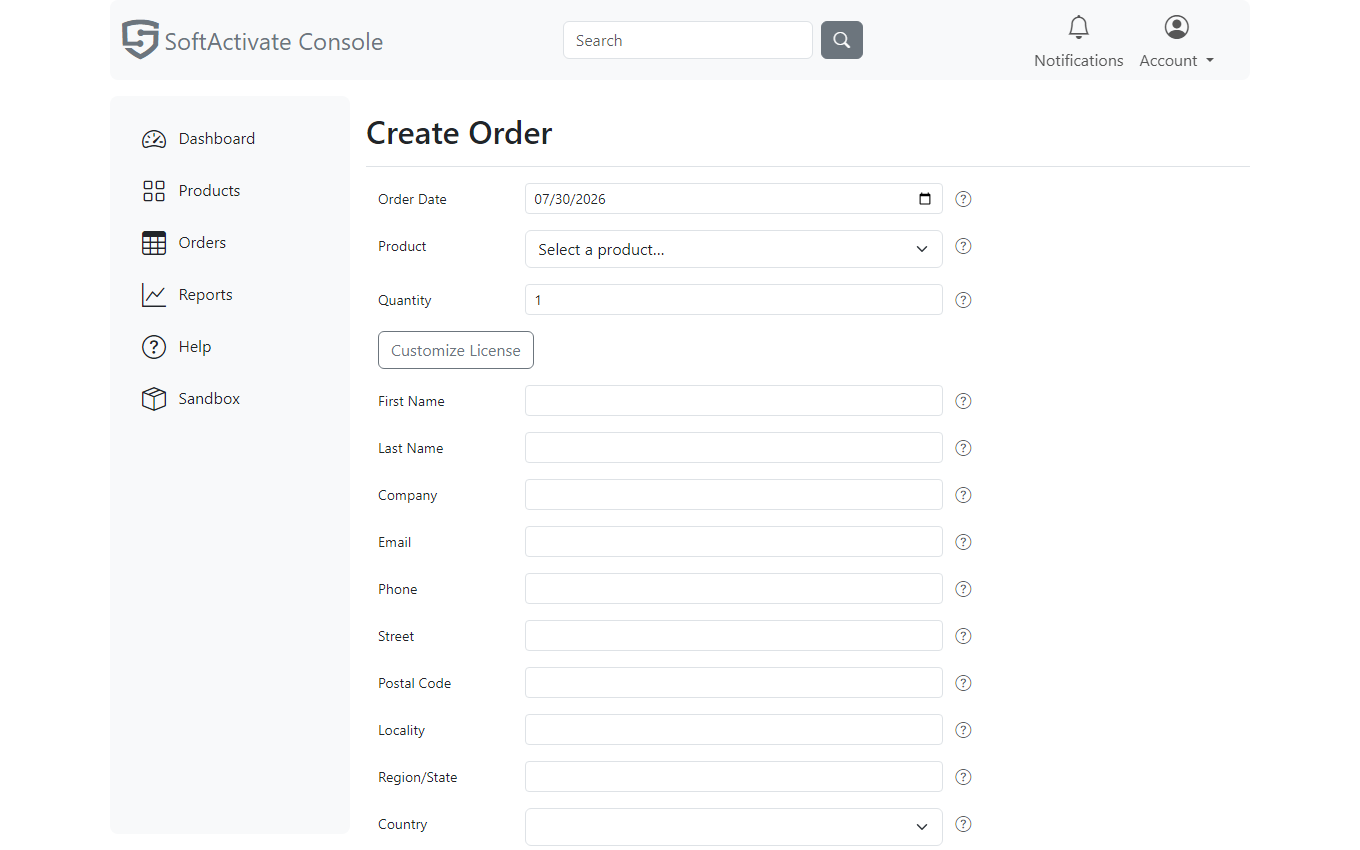
Creating an order
Pick the product and the quantity; one license key is issued per unit. The total prefills from quantity times the product's catalog price but stays fully editable, so you can enter what was charged elsewhere, or 0. The customer email is required, because it is the delivery channel.
The license keys are emailed to the customer, together with the order receipt. The console never displays a key; only a hash is stored at rest. If a customer loses the email, issue a replacement through a new order, and revoke the old license if needed.
Saving lands on the order's page, where the licenses appear immediately.
Customizing the license for one order (custom deals)
Most sales use standard terms; some are negotiated. Customize License on the
order form lets you change the license terms for that order only (more or fewer
seats, a different duration, floating on or off, even a different license type)
without touching the product. Clicking it opens the product's page as the
customization surface: the address carries a target_order reference to the order
being created, a banner states that the product itself will not be modified, and the
commercial fields are locked so only the license terms are yours to change.
Apply to This Order returns you to the order form with everything you had typed
still in place, and a note that customized terms will apply. Remove customization
reverts to the product's standard terms at any point before saving.
The customized terms travel with the order, the licenses mint from them, and the order's page states permanently that the order was issued on customized terms. The product and its template remain exactly as they were for every other sale.
What the customer receives
Two emails are sent together when the order is created:
- the order receipt, with the order number (the same one shown on the order page and found by search), the products and quantities, and the amount charged;
- the license key email, with every key the order issued (a quantity of 3 means three keys in this one email), grouped under the product each key belongs to, and naming the order number so the customer knows what the keys are for.
The order page
- Order number - channel-prefixed:
ORD-for console-created orders, andWEB-,STR-,PPL-for the online channels. The number on a customer's receipt finds the order in search. - Licenses - every license this order issued: product, the key's identification hint (first and last groups, never the key), derived status, validity, and seat counts. Each row opens the license's detail page for seats, offline activation, and revocation.
- Delivery record - to whom and when the keys were emailed. An order created without a customer email shows a clear warning here.
- Subscription - when the order carries one: payment state, provider, next
payment, and the one sanctioned action, cancel at period end. The state shown is
exactly what the customer's application receives through
PAYMENT_REQUIREDvalidation results, so when a ticket says "my app demands payment," this panel tells you why (subscriptions guide). Cancellation on the provider's own side, which the customer's receipt links to, is the companion step.
An order that issues no licenses shows a visible warning on its page. The usual cause is a product without license terms at the time of purchase; fix the product and issue a fresh order.
Where the money side lives
Your own plan and billing (what you pay for SoftActivate Licensing) is a different page: see Plan & billing. This page covers your customers' purchases of your products.